Could your Notion workspace BEEEEE any more powerful right now? 😂
Seriously — Notion has been busy. Like, “stayed late at the office and skipped lunch” busy. If you’ve been heads-down on client projects (same), you may have missed a wave of updates that are genuinely worth pausing for. Some of them are small quality-of-life wins. 😎
Others? They’re going to change how you organize projects, create content, and use AI inside your workspace.
Let’s break it all down — minus the tech jargon, all the practical stuff.
But first… here are my top 3 for web designers!
The Organizational Wins You’ve Been Waiting For
These updates are all about structure. And if there’s one thing web designers need, it’s a workspace that stays organized even when life gets loud.
1 – Tabs Are Here (Finally)
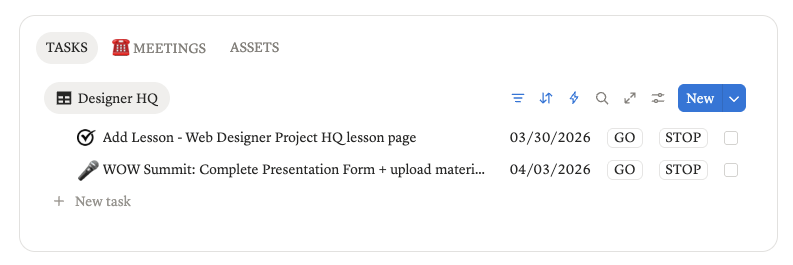
Notion now supports horizontal tabs on pages using the /tabs command. Think of them like toggles, but way more intentional — they load content only when you click them, which means faster page load times and a much cleaner visual experience.
For your web design business, this is huge inside database templates. Imagine a Project HQ template where each tab holds a different phase: Kickoff, Tasks, Assets, Client Docs. Clean. Repeatable. Calm.
Note: these are different from custom layout tabs within pages (those are limited to one database view). These tabs can hold any block type.
2 – H4 Headings Are Now a Thing
A fourth heading level has arrived, and it’s already in the table of contents. For those of us who create detailed SOPs, lesson pages, or long-form content inside Notion, this is a small but meaningful upgrade.
Bonus for those who publish content: H4 tags now carry over properly to platforms like WordPress, which keeps your content hierarchy clean for SEO. ✌🏼
3 – Archive Pages (The Middle Ground Between Trash and Active)
This one is genuinely clever. You can now archive pages directly from the page settings. I’m loving this one for sure!
Here’s why it matters:
- Archived pages stay in your workspace but are hidden from default database views
- Content is preserved indefinitely (unlike trash, which clears after 30 days to a year)
- Archived pages are deprioritized in search and by AI — so they won’t clutter your results
- It creates a three-tier priority system: Verified (high) → Standard (medium) → Archived (low)
Think of this as your “not deleting it, just getting it out of the way” button. Perfect for old client pages, past campaigns, or templates you’re not actively using.
One heads-up: there’s no central archive location yet — pages stay where they are, just grayed out. Something to keep in mind as you organize.
The “Wait, Notion Can Do That Now?” Features
Some of these have been on the wish list for a while. Let’s talk about what’s changed.
4 – Presentation Mode
Pages can now be presented as slide decks. Your page title and icon become the first slide, and dividers (---) create new slides from there. You can even use “present from here” to start mid-page.
This is a fun one for client presentations, onboarding walkthroughs, or workshop content — all built right inside Notion without needing a separate tool. No Canva deck. No PowerPoint. Just your existing page, presented.
5 – Dashboards — A New Database View
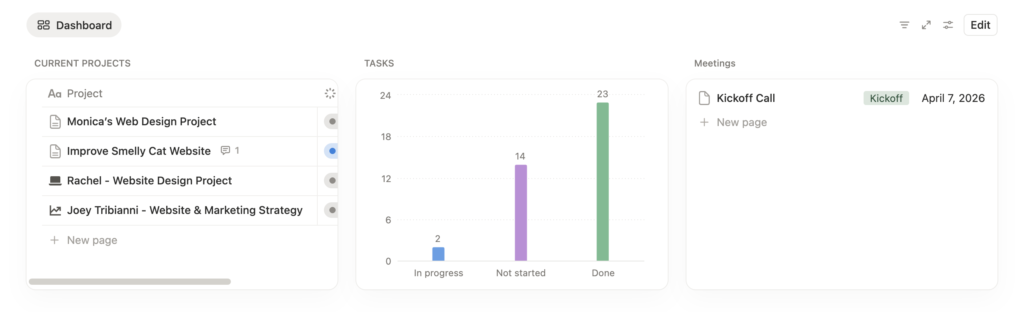
Dashboards are now a view type inside Notion databases, and they’re worth paying attention to. The big deal here: global filters that can filter multiple views simultaneously — even from different databases.
Practical example: imagine a dashboard that shows tasks and projects, both filtered by client. One filter. Two databases. One clean view. For multi-client web designers, this is the kind of setup that saves serious time.
6 – Video Preview in Gallery and Board Views
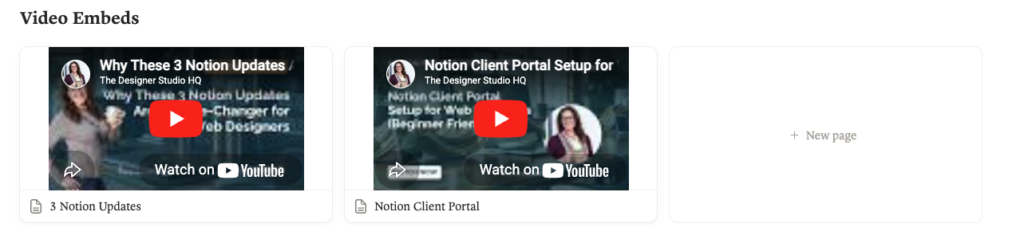
Videos embedded as the first item on a page can now be played directly from gallery or board card views. If you’re using Notion to store client deliverables, tutorials, or course content, this makes browsing so much faster — no more clicking into every page just to preview.
7 – Granular Permissions in Notion
This update is especially useful if you collaborate with clients or external team members. Granular permissions now allow:
- External access with reduced permissions
- Page access rules where users only see their own entries
- The ability for users to click “New” in a locked-down database (previously required a form workaround)
This is a game-changer for client portals and shared workspaces where you want collaboration with boundaries.
The AI Upgrades (Yes, There Are Several)
Notion AI has been doing a lot this round. Here’s what’s new and worth knowing.
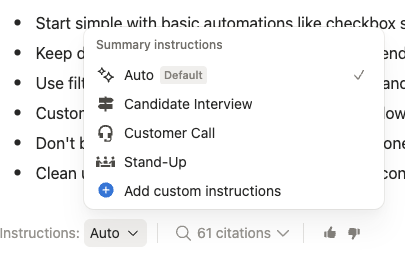
8 – Custom Instructions for Meeting Notes
Meeting notes can now have custom summary instructions — similar to the instructions you set for your personal agent. You can tailor them by meeting type: customer interviews, project kickoffs, sales calls, whatever you need.
You can also assign these instructions to meeting templates and even have AI look up reference documents when building the summary. If you’re using Notion’s built-in meeting notes, this just got a lot smarter.
9 – AI Image Generation
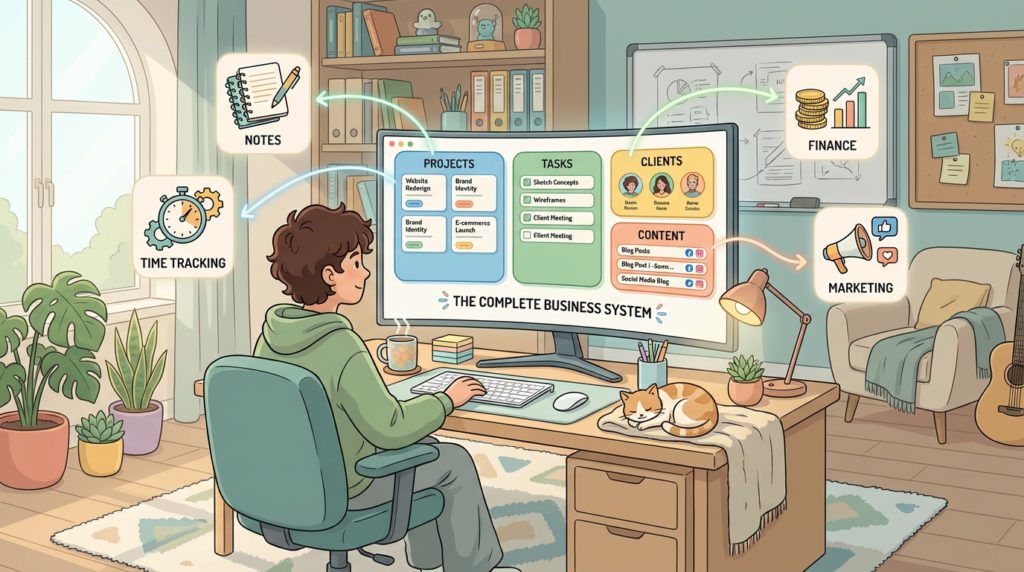
You can now generate images directly through your personal agent or using the /ai-image command — including custom page banners. There’s a daily/monthly limit (around 10 per day or 30 per month), so it’s not unlimited, but it’s a fun and useful addition for content creation inside Notion.
The image below was created on a project page that had an overview of a system I am creating for web designers. The prompt was simply, “create a photo about this page”. I chose cartoon style. 😂
10 – Unified Inline AI
This is a quiet but important shift: the inline AI (the one you activate with the space bar) now runs on the same system as your personal agent. Previously, they were two separate systems with different capabilities. Now they’re unified, and you can even move a conversation from inline to the sidebar chat.
This means your inline AI is smarter and more consistent — and conversations don’t have to start over when you need to go deeper.
So, What Should You Actually Do With All This?
Here’s how I’d prioritize:
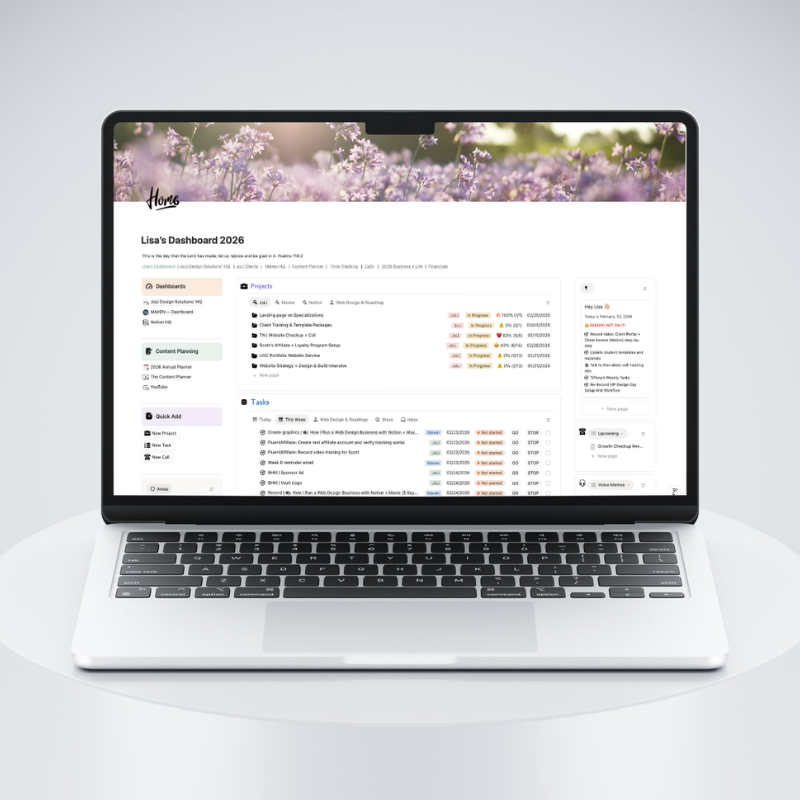
- Set up tabs in your Project HQ template — organize by project phase and watch your client projects get so much cleaner. Don’t have one yet? Get one here for only $49!
- Try the Archive feature — go through your workspace and archive anything that’s done but shouldn’t be deleted.
- Configure My Tasks — if you’re managing multiple databases, get that unified task view set up.
- Explore Dashboards — if you manage multiple clients, a filtered dashboard could save you real time.
- Update your personal agent instructions and create custom meeting note rules — this is low-effort, high-return.
Notion keeps building in the direction of “one calm, connected workspace” — and honestly? It’s working.
If you want help setting any of this up inside your Notion HQ, that’s exactly what I teach inside Build Your Notion HQ — the business systems blueprint built specifically for web designers.